Easy Bookkeeping for
Stress - Free Audits
A powerful cloud and on-premise accounting software, designed for non-profits and small to mid-sized businesses.

A powerful cloud and on-premise accounting software, designed for non-profits and small to mid-sized businesses.
Seamless bookkeeping and accounting solution to keep small business' accounts in check.

Comprehensive payroll solution that handles all aspects of your business' payroll needs.

Keep track of everything that comes into your system and stay transparent of your accounts.

Experience the flexibility of Denali Accounting, available on both cloud and on-premise platforms. Our seamless migration process ensures a smooth transition. Get up to speed in no time!

Denali Fund is designed as a bespoke solution for non-profit organizations that are trying to stay on top of their fund accounting, such as federal grants, private grants and corporate sponsorships.
Learn More
Denali Business is a comprehensive accounting solution made specifically for small to mid-sized businesses, enabling seamless bookkeeping and accounting through advanced processes and reporting features
Learn More
Denali Payroll helps sort through all payroll related activities such as standard pay, special pay, taxes, deductions and regulatory compliances, helping you save time and effort in paying your employees.
Learn More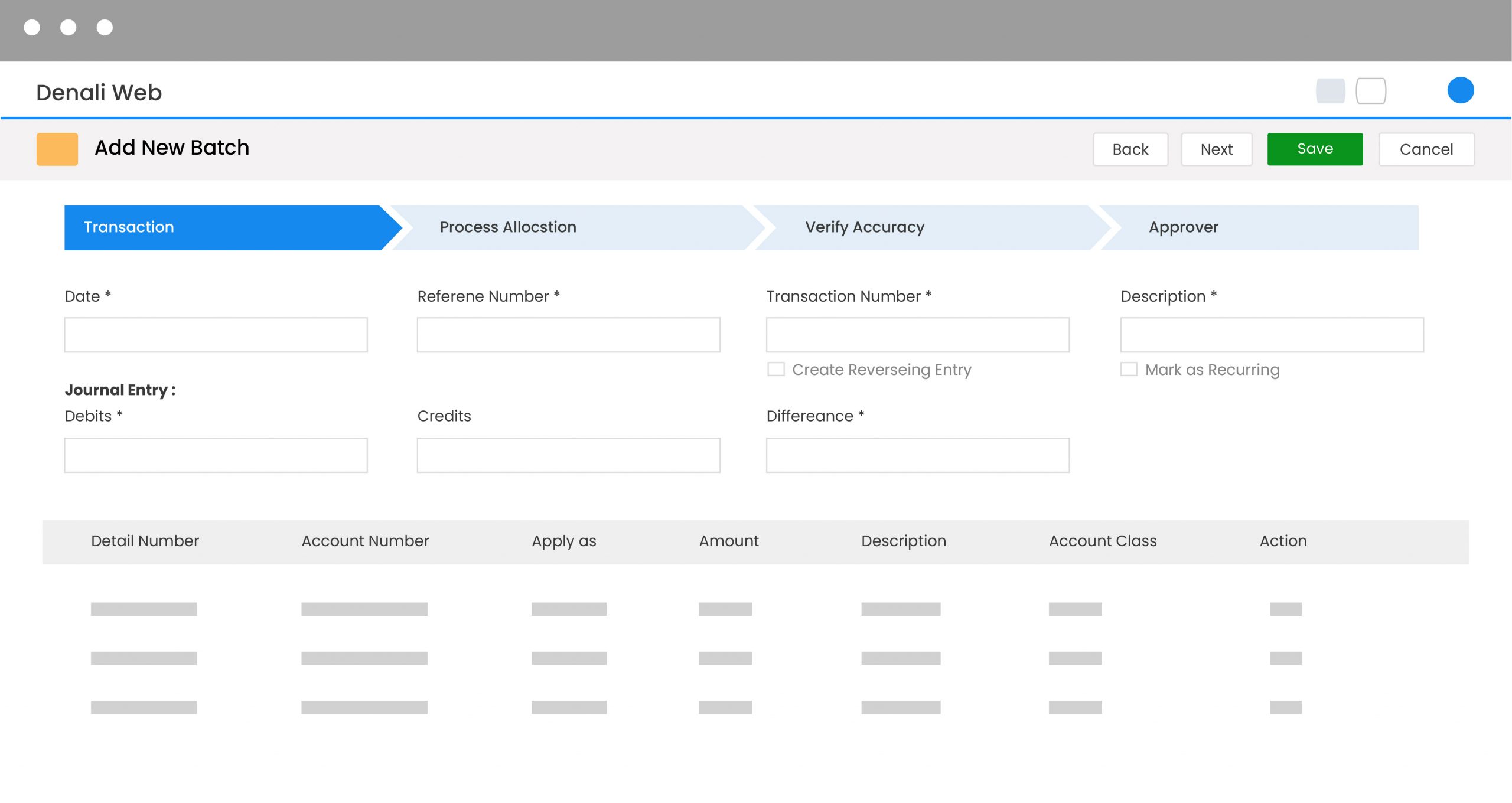
A powerful and comprehensive accounting solution that helps you keep your books in order and make better financial decisions through in-depth financial analytics.
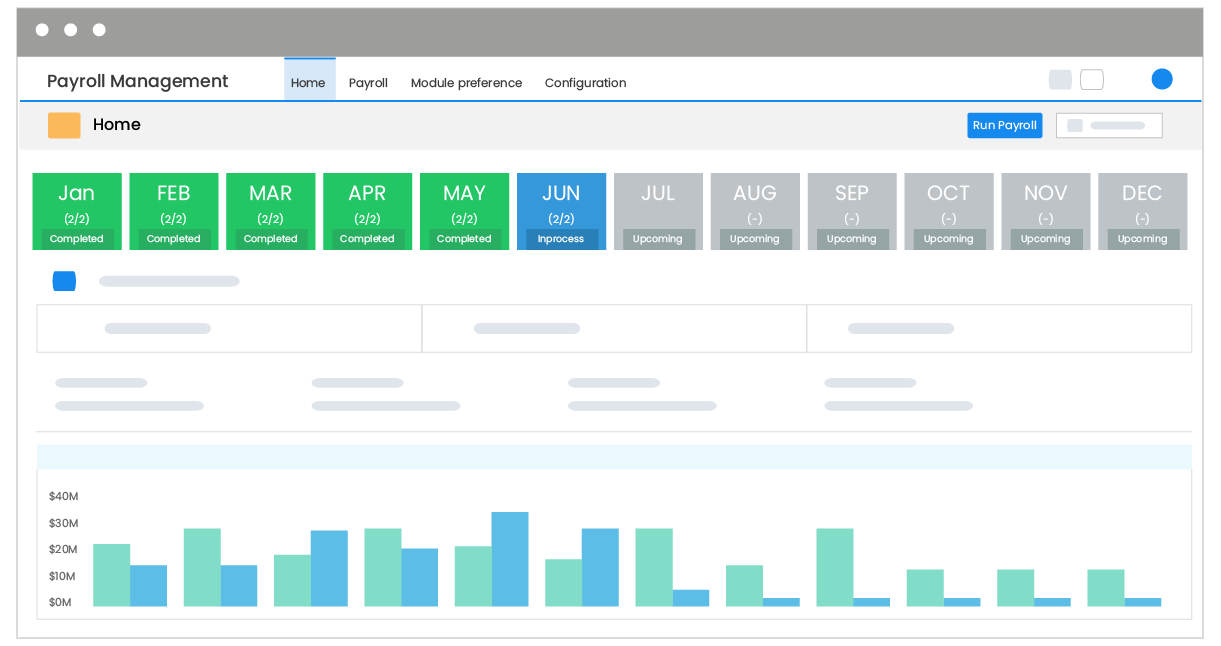
Denali Payroll helps sort through all payroll operations for pay, taxes, deductions and regulatory compliances, helping you save a lot of time and effort in paying your employees.
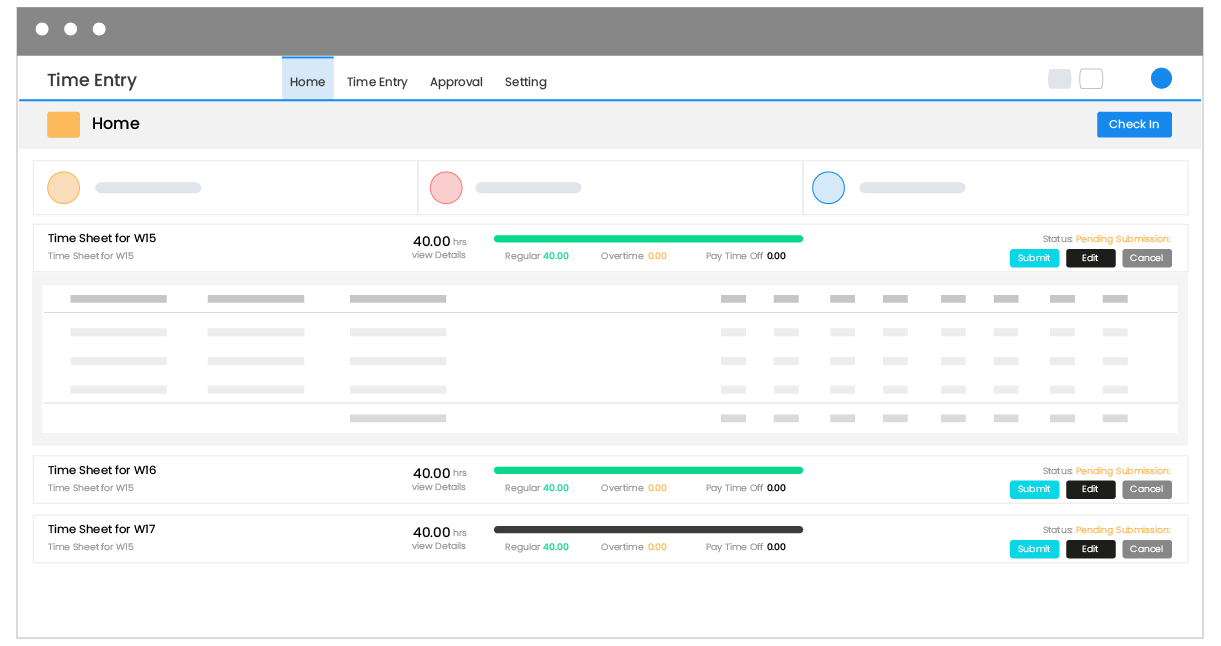
The Time Entry application is built to help you keep a tab of the time your employees are putting in, with zero gaps in data.

We use Cougar Mountain Software to process our nationwide payroll clients for the past year and absolutely love the ease of use and speed this software has given us. Truly kicks butt over any Sage product out there. We are a client for life!

Manager
With Denali FUND we are able to export into files that import easily into Excel and then we can produce reports that make sense for our municipality. The support has been fantastic. From implementation to ongoing use, all we have to do is call for help.

Manager
We have used Cougar Mountain for many years and Denali FUND since its inception. Cougar Mountain is very open to feedback and suggested improvements. Their customer support is terrific! We get full functionality for our small town government office at a cost we can afford.

Admin